
The Import tool reads message key and value files from a local directory and produces the resulting records to a selected Topic. It is designed to import data created by the File System option of the Export tool, or files that follow the same naming pattern.
Open the full wizard from the Tools menu by selecting "Import...". The first page asks you to select a destination Topic.
When viewing messages for a Topic or Partition, the Import toolbar button opens the tool directly on the Settings page and automatically selects the current Topic as the destination. Click Back to review or change the selected Topic.
The Import tool uses a three-page wizard.
Select the destination Topic and click Next. Offset Explorer loads the Topic partitions and opens the Settings page. The destination Topic is selected automatically when the tool is opened from a message data panel.
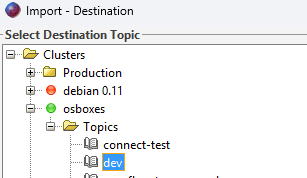
Load Project and the recent-project button are shown on this page. Loading a project restores the destination Topic and all saved import settings.
Configure the files to import and the destination partitions.
At least one of Import Keys or Import Values must be selected, the source directory must exist, and at least one destination Partition must be selected.
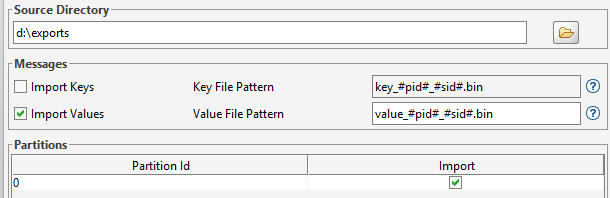
Key and value files are read as raw binary data. The Import tool does not decode, convert, or validate their contents against a Schema. A key-only import produces records with null values, and a value-only import produces records with null keys.
Key File Pattern and Value File Pattern describe the names of files to import. Each enabled pattern must contain
#sid#. The optional #pid# token identifies a destination Partition.
#sid# - a numeric sequence id used to order files and pair key files with value files.#pid# - a numeric Partition id used to route a record to a selected destination Partition.
For example, the default value pattern value_#pid#_#sid#.bin matches files such as
value_00003_000000000000000125.bin. The record has Partition id 3 and sequence id 125.
Numeric ids may contain leading zeros.
All text outside the tokens must match the file name exactly. Files that do not match an enabled pattern are ignored. Only regular files directly inside the source directory are examined; subdirectories are not scanned.
When both Import Keys and Import Values are enabled, the tool sorts the matching files by Partition id and sequence id, then pairs each key file with the corresponding value file. The number of matching key files and value files must be the same.
Use matching #pid# and #sid# values in each key/value pair. The File System export
format creates compatible pairs automatically. For a key-only or value-only import, enable only the data that
exists in the source directory.
The tool checks that the key and value file counts are equal, but it does not separately verify that every paired file has matching ids. Check externally generated file sets before importing them.
Use the Partitions table to control which destination Partitions are available for the import. When a file name
contains a #pid# value that matches a selected Partition, the record is produced directly to that
Partition.
If the pattern does not contain #pid#, or its value does not match a selected Partition, Offset Explorer
assigns the record to one of the selected Partitions. Select only the Partitions that should receive imported data.
Save Project appears on the Settings and Results pages. It saves the current import configuration as a JSON file. Load Project and the recent-project button appear on the Destination page.
A project includes the destination Topic identity, source directory, key and value options, file patterns, and selected destination Partitions. Offset Explorer remembers up to 15 recent project files.
When a project is loaded, Offset Explorer locates the saved server connection and Topic. Loading fails if the connection or Topic is no longer available. The source directory and files are validated when the import starts.
Click Next on the Settings page to begin. Offset Explorer matches the files in the source directory, reads their binary contents, and produces the resulting records to the selected destination Partitions.
Imported records do not include Kafka headers or an original record timestamp. Kafka assigns the timestamp when each record is produced. Existing records in the destination Topic are not replaced; the imported records are appended at new offsets.
If no files match, key and value file counts differ, a file cannot be read, or Kafka rejects a record, the tool reports an error instead of showing a successful Results page. Canceling stops further import work.
The Results page contains a summary and a per-partition table.
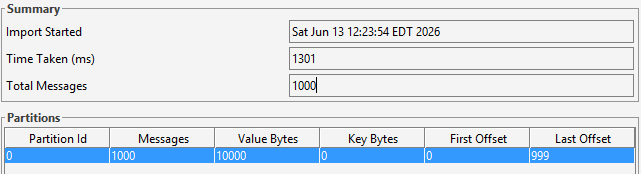
Save Project remains available on the Results page, and Back returns to the Settings page.